
Quick How-To
Quick How-To
Section titled “Quick How-To”📋 How to create a project
Section titled “📋 How to create a project”- Click Conversations in the sidebar to open the Conversations page
- Click the New Project button
- Step 1 — Choose the audio type for your project: Interviews (one-on-one conversations), Focus Groups (group discussions), or Call Center Calls (contact center calls)
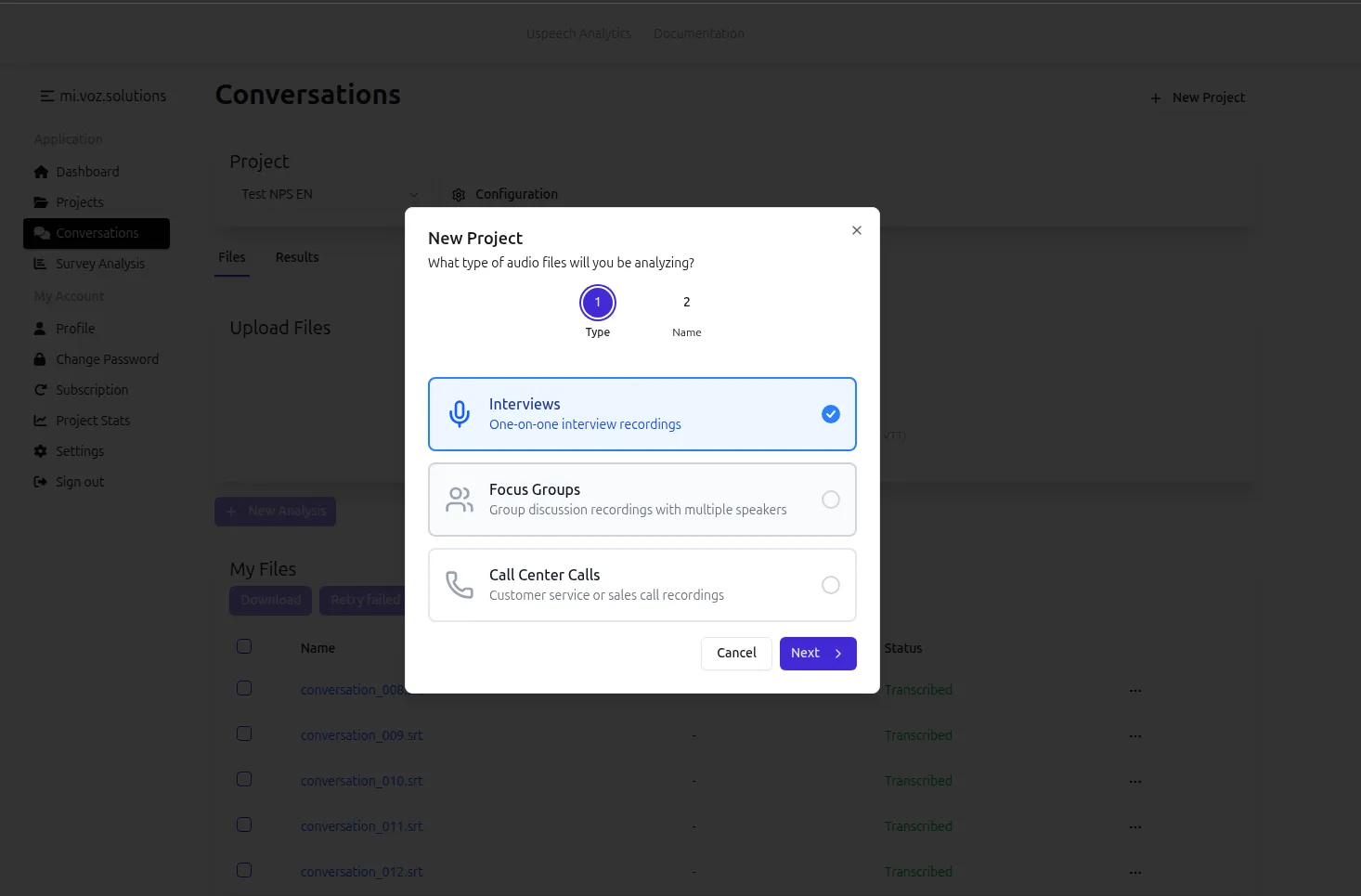
- Step 2 — Enter a name for your project and click Create
Language detection and timestamps are configured automatically (language is set to auto-detect and timestamps are always enabled).
📝 How to Transcribe a File
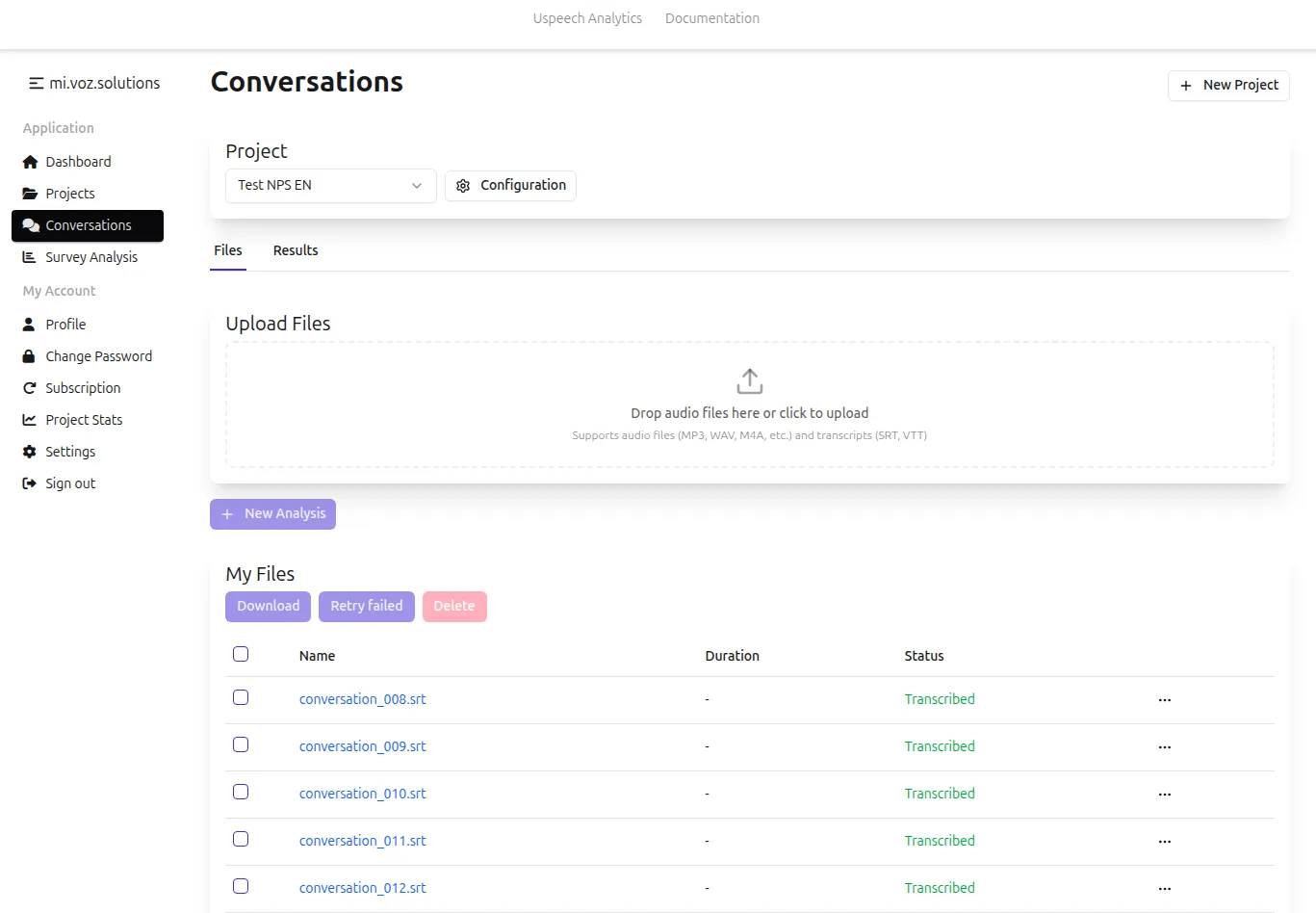
Section titled “📝 How to Transcribe a File”- Open your project and go to the Files tab
- Drag and drop audio, video, or transcription files into the upload zone (or click to browse)
- Transcription starts automatically after upload — no extra button needed
- The file status will change to “Transcribing”. Processing typically takes about 1/8 of the audio duration
- Once complete, the status will change to “Transcribed” and you can click on the file name to review
- If a file fails, click the three-dot menu next to the file and select Retry transcription
💡 Tip: you’ll get an email notification when the transcription process is finished. In order to enable email notifications, go to Profile, check “Notify job completion” and click Save.
⚠️ Important: any transcribed audio files are billed based on their duration, after the transcription is done, regardless of the number of analysis types. However, uploaded transcription files are not billed until the analysis is performed on them.
👁️ How to Review Your Transcript
Section titled “👁️ How to Review Your Transcript”- Click on the file name to open the transcript view. Only files with “Transcribed” status can be reviewed
- Review the transcript
💾 How to Download Your Transcript
Section titled “💾 How to Download Your Transcript”- To download a single file, click the three-dot menu next to the file and select Download
- To download multiple files, select them using the checkboxes and click the Download button
- Available formats: Word Document (DOCX) and VTT