
Call Metadata
Call Metadata
Section titled “Call Metadata”Uspeech analyzes what happens inside a call. Everything around the call — when it happened, which agent handled it, whether it was inbound or outbound, which campaign it belonged to — comes from your own systems. There are three ways to provide it:
- A CSV manifest for a whole project — the fastest way to cover a batch of recordings
- The Edit call metadata dialog on a single file — for fixing or filling in one call
- The API, either at upload time or afterwards — see Call Metadata API
All three write to the same place, so you can mix them freely.
Why it matters
Section titled “Why it matters”Without metadata, Uspeech falls back to the file’s upload time and to the agent name the AI hears in the conversation. That still produces a report, but:
- The weekly trend and the date filters use the upload date instead of the call date
- The shift comparison cannot classify calls (only calls with real date/time are counted)
- Agent performance relies on the name spoken in the call, which varies between recordings
- Direction and campaign are unavailable as filters
Providing metadata fixes all of these at once.
Uploading a manifest (many calls)
Section titled “Uploading a manifest (many calls)”- Click Conversations on the navigation bar
- Select your call center project
- On the Files tab, click Call Metadata (CSV)
- Choose your CSV file and click Upload
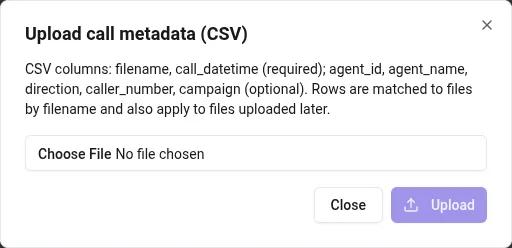
The dialog reports how many files were matched, how many rows are still pending (no matching file uploaded yet), and any rows that could not be read.
CSV format
Section titled “CSV format”One row per call, with a header row:
| Column | Required | Description |
|---|---|---|
filename | Yes | Name of the audio or transcript file as uploaded |
call_datetime | Yes | When the call took place |
agent_id | No | The agent’s identifier in your own systems |
agent_name | No | The agent’s display name |
direction | No | inbound or outbound |
caller_number | No | Phone number of the customer |
campaign | No | Campaign or queue name |
Example:
filename,call_datetime,agent_id,agent_name,direction,caller_number,campaigncall_001.mp3,2026-06-15 09:12:00,A-06,Ana Diaz,inbound,+34600111222,Retentioncall_002.mp3,2026-06-15 09:41:00,A-10,Luis Gomez,outbound,+34600333444,Winbackcall_003.mp3,2026-06-15 10:02:00,A-06,Ana Diaz,inbound,+34600555666,RetentionAccepted date/time formats:
2026-06-15T09:12:00(ISO 8601, with or without a time zone)2026-06-15 09:12:00or2026-06-15 09:1215/06/2026 09:12:00or15/06/2026 09:12
Values without a time zone are interpreted in the server’s time zone.
How rows are matched to files
Section titled “How rows are matched to files”- Exact filename match first (
call_001.mp3→call_001.mp3) - Name without the extension, case-insensitive, as a fallback — so a manifest that lists
call_001.wavstill matches an uploadedcall_001.mp3
Two useful consequences:
- Order doesn’t matter. Rows that don’t match anything yet are kept on the project and applied automatically to files uploaded later. You can upload the manifest before, during, or after the recordings.
- Transcripts count as calls. SRT and VTT uploads are matched exactly like audio files.
You can upload a manifest more than once; later uploads add to and update the stored rows.
Rows that are skipped
Section titled “Rows that are skipped”A row is rejected — and reported back in the dialog — when:
filenameis emptycall_datetimeis missing or not in one of the accepted formats
Everything else is optional: unknown or empty optional columns are simply ignored. A direction value that isn’t inbound or outbound is dropped, and the rest of the row still applies.
Editing one call
Section titled “Editing one call”In a call center project the files table shows two extra columns — Call time and Agent — so you can see at a glance which calls already carry metadata. A call time shown in grey is the file’s upload time, used as a placeholder because no real call time has been provided yet.
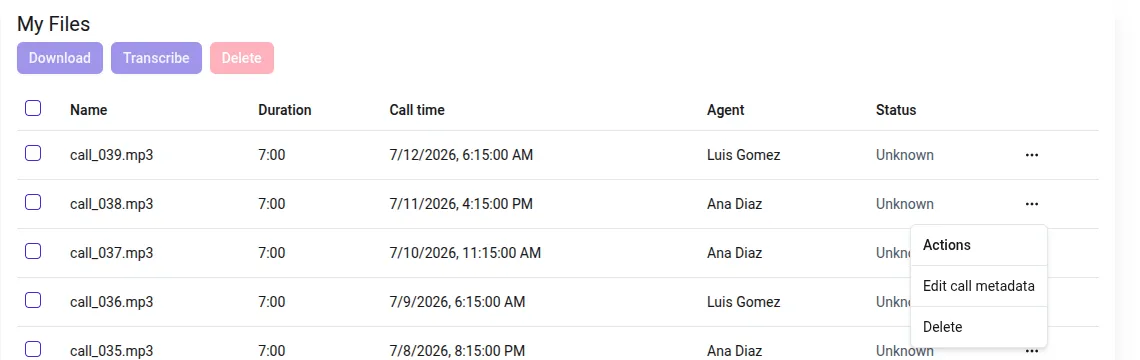
To change a single call, open the ⋯ menu on its row and choose Edit call metadata.
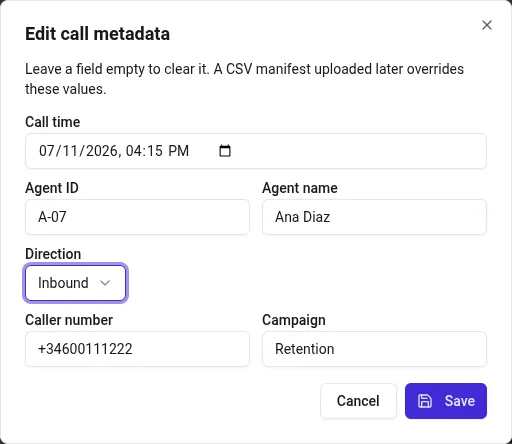
The dialog is available on audio files and on SRT/VTT transcripts. A few things worth knowing:
- Empty clears. Saving a field left blank removes the value that was there. This is the opposite of the CSV manifest, where a blank cell simply leaves the existing value alone.
- Call time can’t be emptied. Clear it and the call falls back to the file’s upload time.
- A later manifest wins. If you upload a CSV manifest afterwards, its rows overwrite what you typed here. Edit individual calls after the bulk load, not before.
- Editing metadata never re-runs analysis. Scores, topics and sentiment are left exactly as they are; only the descriptive fields change.
Agent identity
Section titled “Agent identity”Uspeech keeps one agent record per person and links every call to it:
- If you provide
agent_id, it is the key — renaming the agent later keeps the history intact - If you provide only
agent_name, agents are matched by name (case and spacing are normalized) - If you provide neither, the agent name the AI extracted from the conversation is used as a fallback
Metadata always wins. A name extracted from the audio never overwrites an agent supplied by the manifest or the API.
Sending metadata through the API
Section titled “Sending metadata through the API”If you upload recordings programmatically, you can attach the same fields to each file at upload time instead of maintaining a CSV, change them afterwards, and read back what a call currently carries — see Call Metadata API.