
Agent Access
The Agent role gives each call center agent a login of their own. An agent sees the calls where your call metadata names them as the agent: their scores, the transcripts and a personal report they can download. They do not see other agents, team-wide figures or any project settings, and they cannot change anything.
Setting it up takes three steps:
- Add each agent’s email to your call metadata
- Invite the agent with the Agent role
- The agent creates their account from the invitation email
You can do steps 1 and 2 in either order. The agent’s calls appear as soon as both are done.
1. Add the agent’s email to your call metadata
Section titled “1. Add the agent’s email to your call metadata”Uspeech links an agent to their calls by email, so your metadata has to carry it. Add an agent_email column to your CSV manifest, next to the agent_id:
filename,call_datetime,agent_id,agent_name,agent_emailcall_001.mp3,2026-06-15 09:12:00,A-14,Emilio Vargas,emilio.vargas@example.comYou can also:
- Use the email as the agent’s ID. An
agent_idthat is a valid email address is read as the agent’s email too, so you don’t need a separate column. - Fill in Agent email in the Edit call metadata dialog
- Send
agent_emailthrough the API
Calls you have already uploaded. The email belongs to the agent, not to a single call. One row with an agent’s agent_id and agent_email links every call that already carries that agent_id, so you don’t have to upload all of them again.
See Agent email for the details.
2. Invite the agent
Section titled “2. Invite the agent”Only team administrators can invite.
- Open the team menu at the top of the left navigation and choose Team Settings
- Under Invite Team Members, enter the agent’s email. It must be the same address as in your call metadata
- Choose Agent (own report only) as the role
- Click Invite
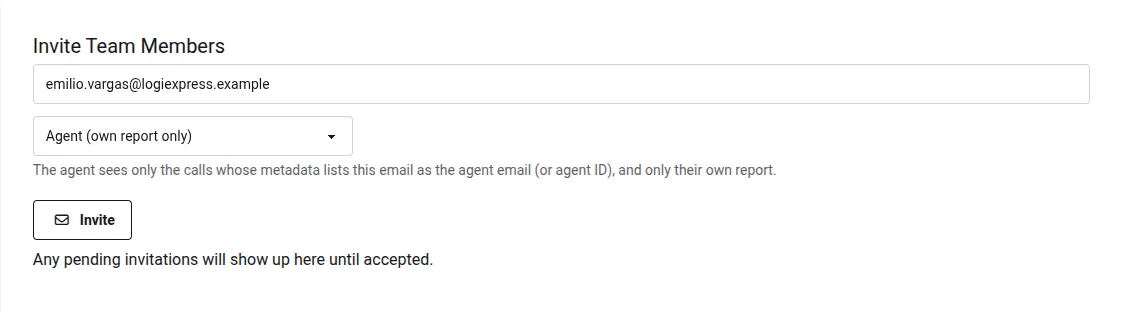
The invitation expires after 14 days. Resend Invitation sends a new email and starts the 14 days again.
3. The agent accepts the invitation
Section titled “3. The agent accepts the invitation”The agent opens the link in the invitation email and clicks Create Account to Accept. After signing up, they land on their own report.
What an agent sees
Section titled “What an agent sees”The left navigation has only My Report, My Calls, Profile, Change Password and Sign out.
My Report
Section titled “My Report”This is the Call Center Report calculated from the agent’s own calls alone. Every figure, including the comparison with the previous period, describes that one agent.
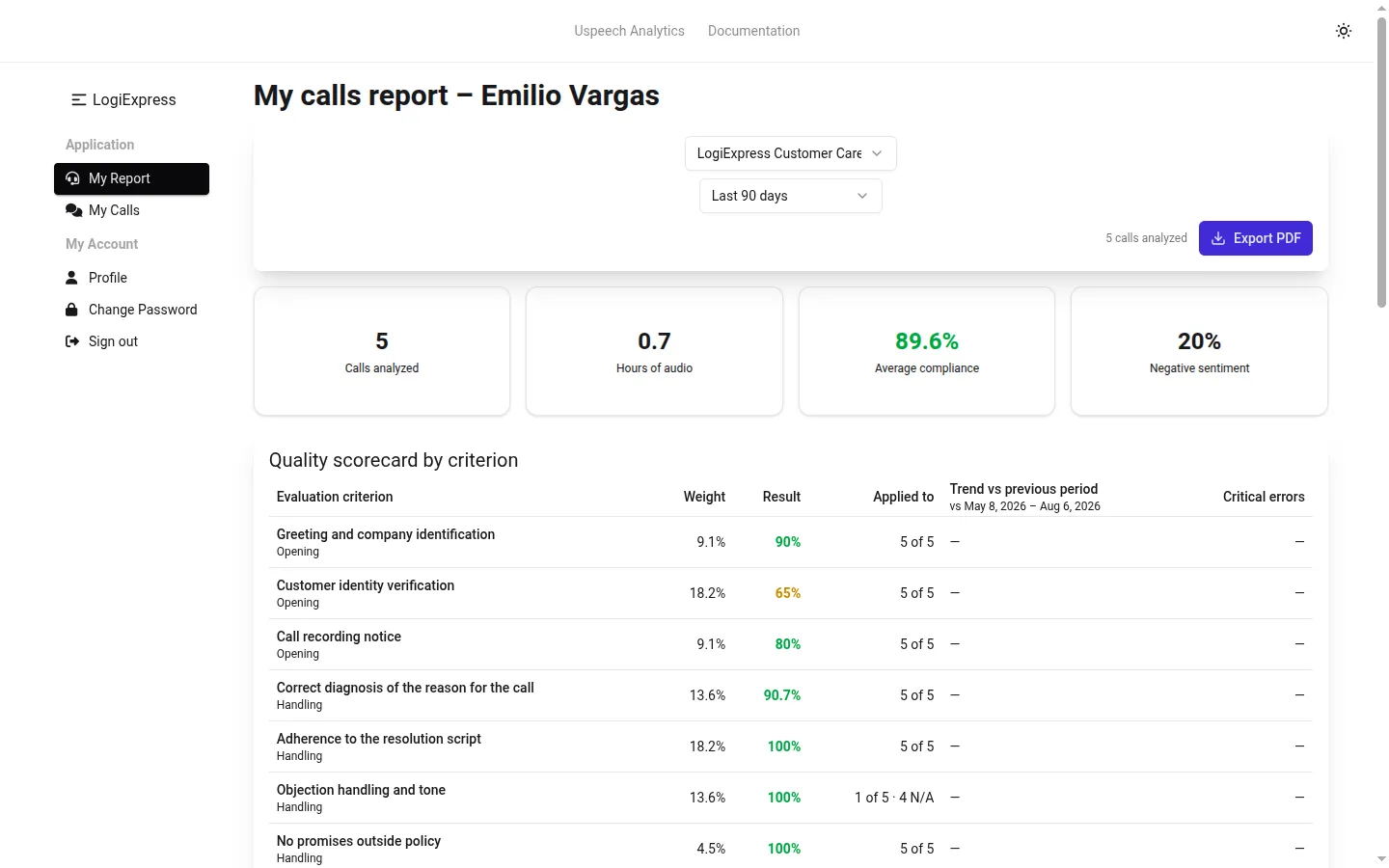
| Section | What the agent gets |
|---|---|
| Headline metrics, scorecard, compliance trend | Calculated from their own calls |
| Contact reasons, shift comparison | Calculated from their own calls |
| Exemplary calls | Their own best calls, at most two, as in the team report. Exemplary only in the calls list shows all of them |
| Calls | Their own calls, with the full detail of each one, and without the agent filter |
| Custom question answers | The answers on their own calls |
| Agent performance | Not shown |
| Best practices to replicate | Not shown, because they quote other agents’ calls |
| Refresh contact reasons | Not shown |
The report covers analyzed calls only, like the team report. It opens on Last 30 days, so older calls need a wider date range.
The personal PDF
Section titled “The personal PDF”Export PDF produces a report written for the agent, in the language of their profile. When you download it for them from the Call Center Report, it is in your language. The AI writes it to the agent directly, from their own figures, and never compares them with anyone else.
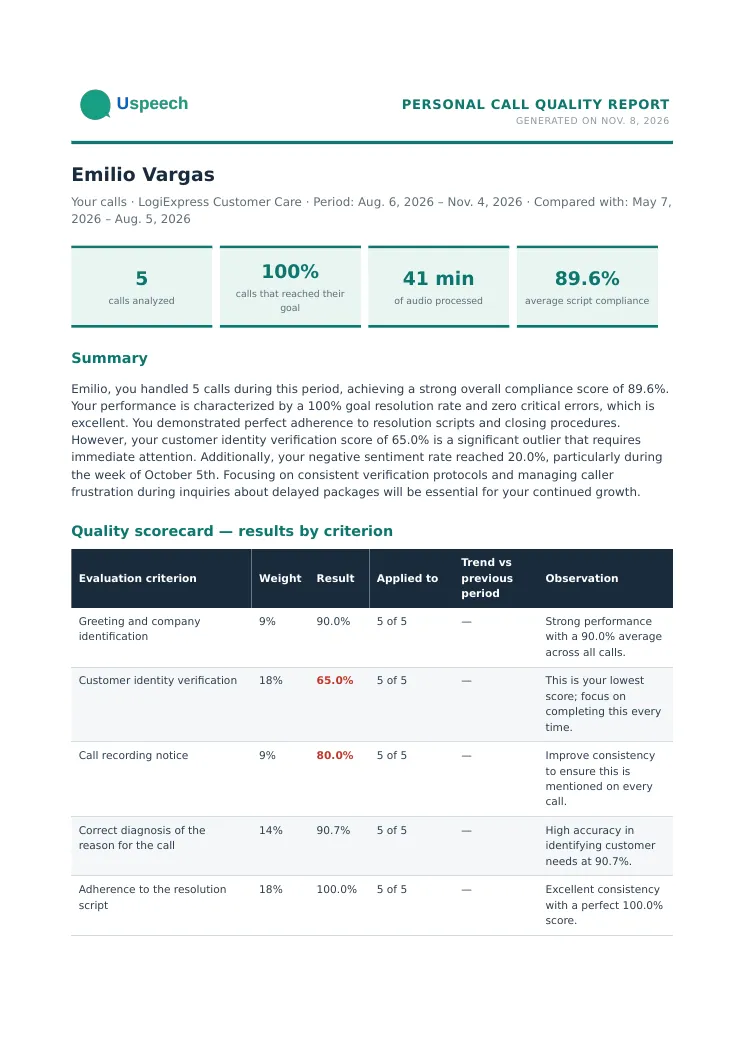
It contains the agent’s headline metrics, a summary, their scorecard and contact reasons, What you do well, Where to improve, Your best calls, Recommendations for you and a short note on how calls are scored. If the AI text can’t be generated, the PDF is still produced with the tables.
My Calls
Section titled “My Calls”A read-only version of the Conversations page. The project list holds only the projects that contain one of the agent’s calls.
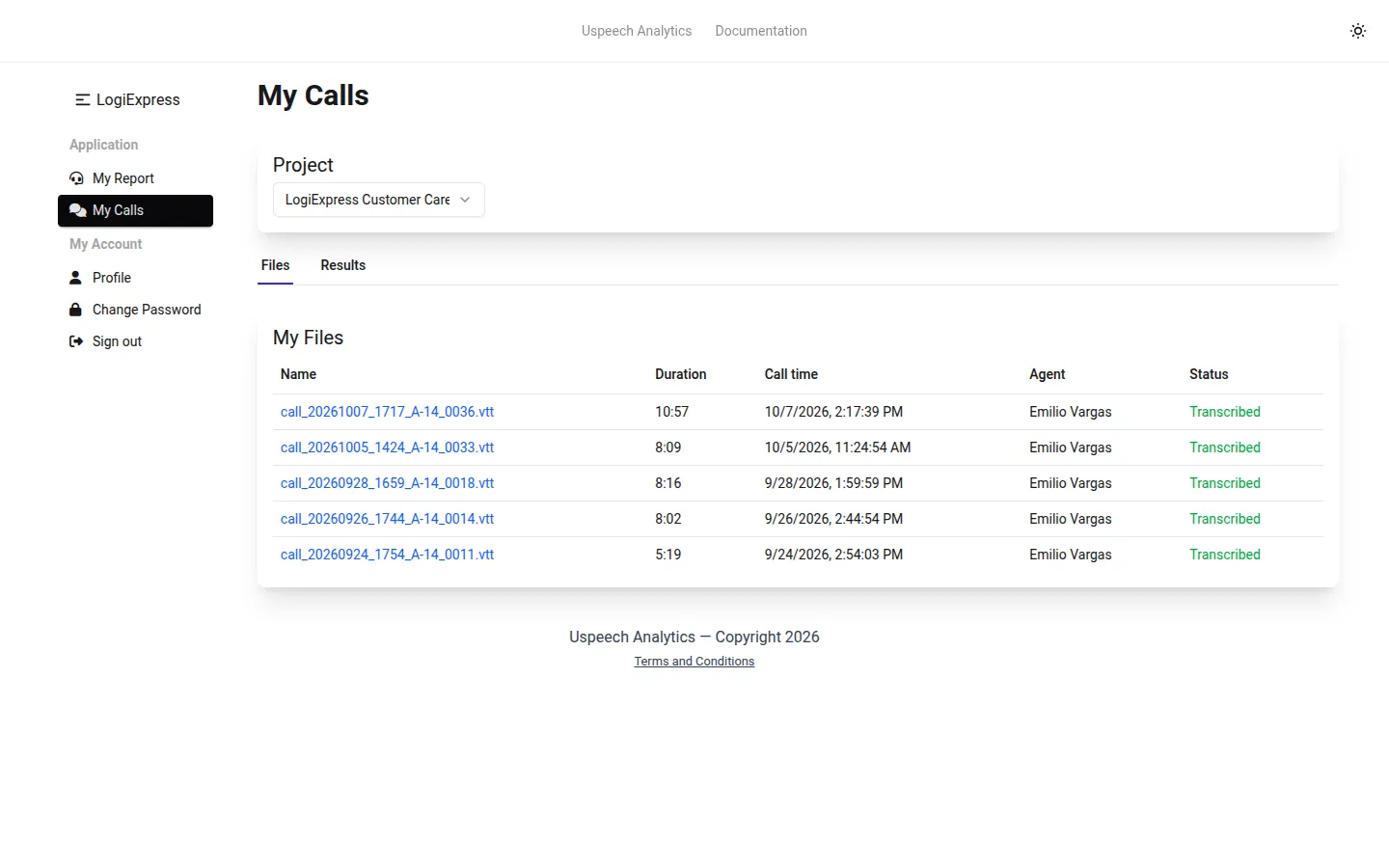
- Files lists the agent’s calls in that project, including calls that have not been analyzed yet. Click a transcribed call to read its transcript.
- Results lists the finished Calls Analysis and COPC Evaluation runs that include one of their calls. View Results opens them with only that agent’s calls, and the totals and averages on the page are recalculated from those calls.
What agents can’t do
Section titled “What agents can’t do”| Other people’s data | Other agents’ calls, scores and transcripts, the agent table, and team-wide figures |
| Changes | Uploading, editing or deleting anything, running or retrying an analysis, sharing a project |
| Settings | Project configuration, rubrics, templates, team settings and subscription |
| Recordings and downloads | Listening to the audio, and downloading transcripts or results. The personal PDF is the only download |
| API | API keys can’t be created, and any key the account already has stops working |
Any other page shows a not found error, even if the agent types its address directly.
How calls are matched to an agent
Section titled “How calls are matched to an agent”A call belongs to an agent when both of these are true:
- Your metadata names the agent. The call’s agent came from a CSV manifest, the Edit call metadata dialog or the API. A name the AI heard in the conversation doesn’t count, so a call uploaded without metadata never reaches an agent, even if the name matches.
- The emails match. That agent’s email is the address the invitation was sent to, in the same team. Capitalization doesn’t matter.
The address is fixed when the invitation is accepted. Changing the email on their profile doesn’t change which calls an agent sees, so nobody can reach a colleague’s calls by editing their own profile.
Managing agents
Section titled “Managing agents”Who can be an agent. An agent account holds only agent memberships. It can be an agent in more than one team, but it can’t also be a member or administrator of any team.
Changing someone’s role. The Agent role can only be granted by invitation, and it can’t be changed to or from another role. Use Remove from Team, then send a new invitation.
Removing access. In Team Settings, click the agent’s name under Team Members and choose Remove from Team. Access ends immediately. The agent’s calls and scores stay in your reports.
Changing an agent’s email. Enter the new address in your metadata, then remove the agent and invite the new address. The invited address is fixed, so changing the metadata alone removes access from the old address without giving it to the new one.
Downloading an agent’s report
Section titled “Downloading an agent’s report”On the Call Center Report, click the download icon next to the agent in Agent performance. You get that agent’s personal PDF for the projects and dates you have selected, the same one they would get from their own login. Use it to check what an agent sees, or to send agents their reports without inviting them. The Call Reports API returns the same report, or its PDF, with ?agent=<id>.
If something doesn’t look right
Section titled “If something doesn’t look right”The agent’s report or My Calls is empty
Section titled “The agent’s report or My Calls is empty”| Check | What to do |
|---|---|
| Do the emails match? | Open one of the agent’s calls with Edit call metadata and compare Agent email with the address you invited |
| Does the call’s agent come from your metadata? | Calls uploaded without metadata are linked to the name the AI heard, which doesn’t count. Upload a manifest for them |
| Is the report empty, but My Calls isn’t? | The calls have not been analyzed yet, or they are outside the date range. Try All time |
Only some of an agent’s calls appear
Section titled “Only some of an agent’s calls appear”The usual cause is an agent identified by name only, with no agent_id. Adding an email to a name-only agent creates a second agent record with the same name, and later rows without the email go to the first one. Give the agent a stable agent_id, or include agent_email on every row.
An invitation is refused
Section titled “An invitation is refused”“This invitation is for an agent account, which can’t belong to other teams.” The address already has a regular account, usually because the person signed up before the invitation arrived, or belongs to another team. An account can’t be both, so invite a different address for the agent role and use that address in your call metadata.
“Agent accounts can’t join other teams.” The opposite case: the account is an agent and received an invitation as a member or administrator. Use a different address for that invitation.