Skip to content
- Navigate to Templates from the main menu
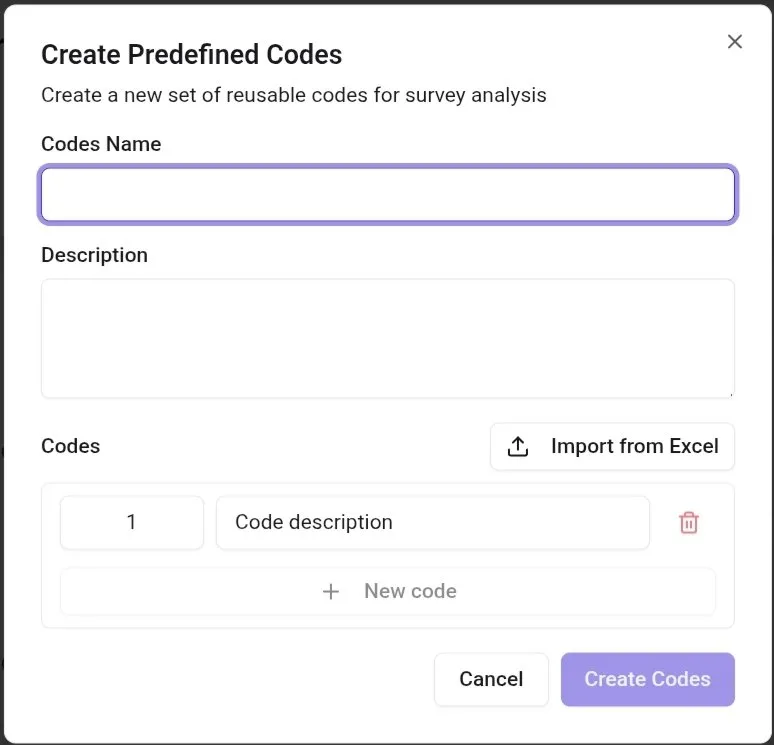
- Switch to the Codes tab
- Click New Codes
- Enter a name and optional description
- Add your codes:
- Enter each code number and description
- Or import from CSV
- Click Save
- Navigate to Templates from the main menu
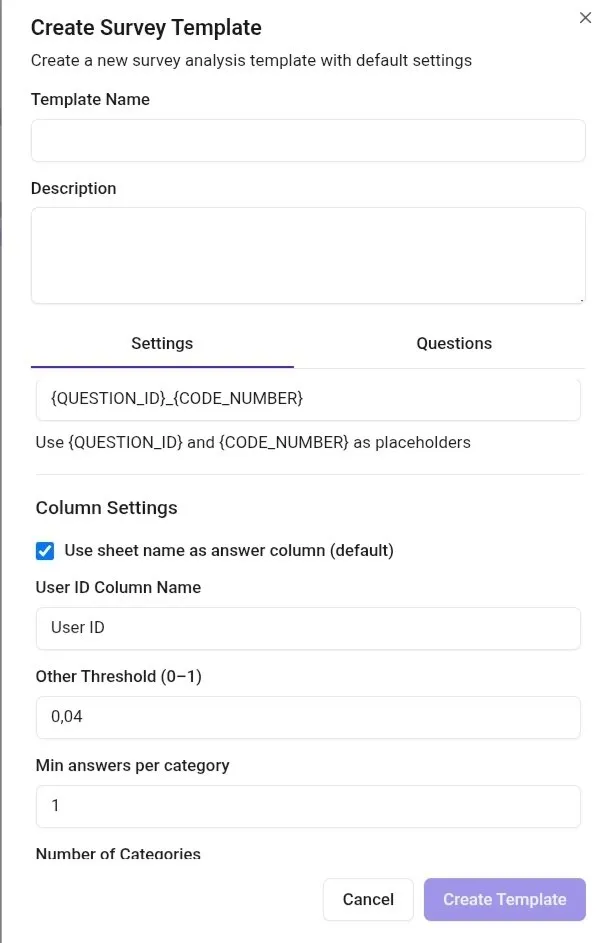
- Click New Template
- Enter a name and optional description
- Configure your settings:
- Add questions (manually or import from CSV)
- Set default analysis settings
- Link predefined codes (optional)
- Click Save
- Upload your survey file
- In the analysis settings, select your template from the dropdown
- Settings and codes from the template are automatically applied
- Adjust any settings if needed
- Run your analysis
- Create a transcription project, upload and transcribe your audio files (see Transcriptions Guide)
- On the Conversation Analysis page, select Custom Questions -> From Template
- Choose your template from the dropdown
- Choose Analyze separately
- Click Add to start the analysis