
Automatic Analysis
Automatic Analysis
Section titled “Automatic Analysis”A call center that uploads recordings all day does not want to remember to press New Analysis. With automatic (on-arrival) analysis, each call is analyzed shortly after it finishes transcribing, in small batches, and the Call Center Report updates as results land.
The manual flow still works exactly as before — see Quick How-To. Automatic analysis simply keeps running it for you on new recordings.
Turning it on
Section titled “Turning it on”There are two ways to enable it. Both save the same project configuration.
From the project configuration
Section titled “From the project configuration”- Click Conversations on the navigation bar and select your call project
- Click Configuration — this opens the Project Settings dialog
- Tick Analyze calls automatically as they arrive
- Click Choose analyses… — the analysis wizard opens in automatic mode
- Pick what should run on every new call and click Save configuration
- Click Save to close the settings dialog
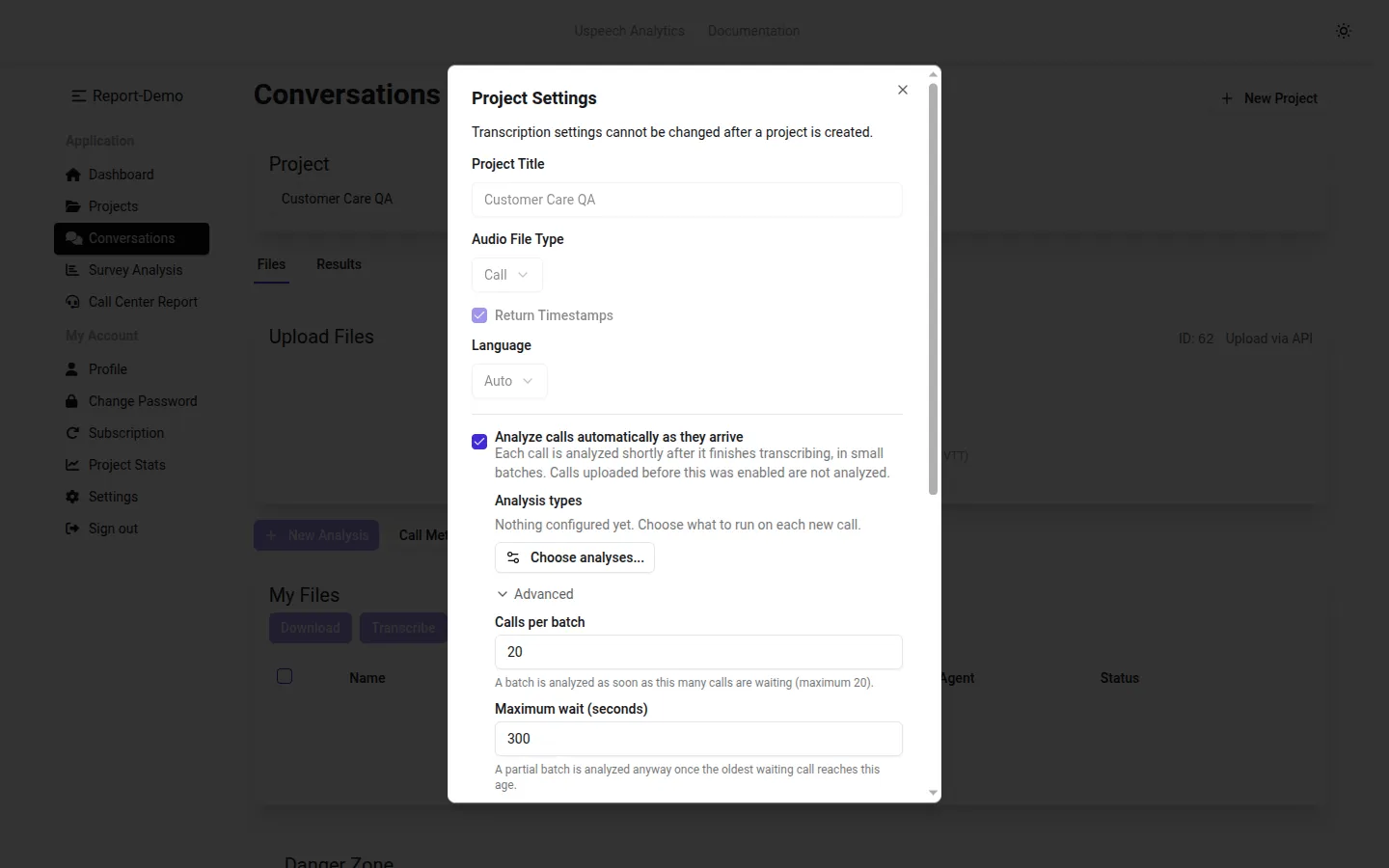
Once something is configured, the dialog summarises it — the analysis types, and the rubric or the number of questions behind them — and the button reads Configure… instead of Choose analyses…:
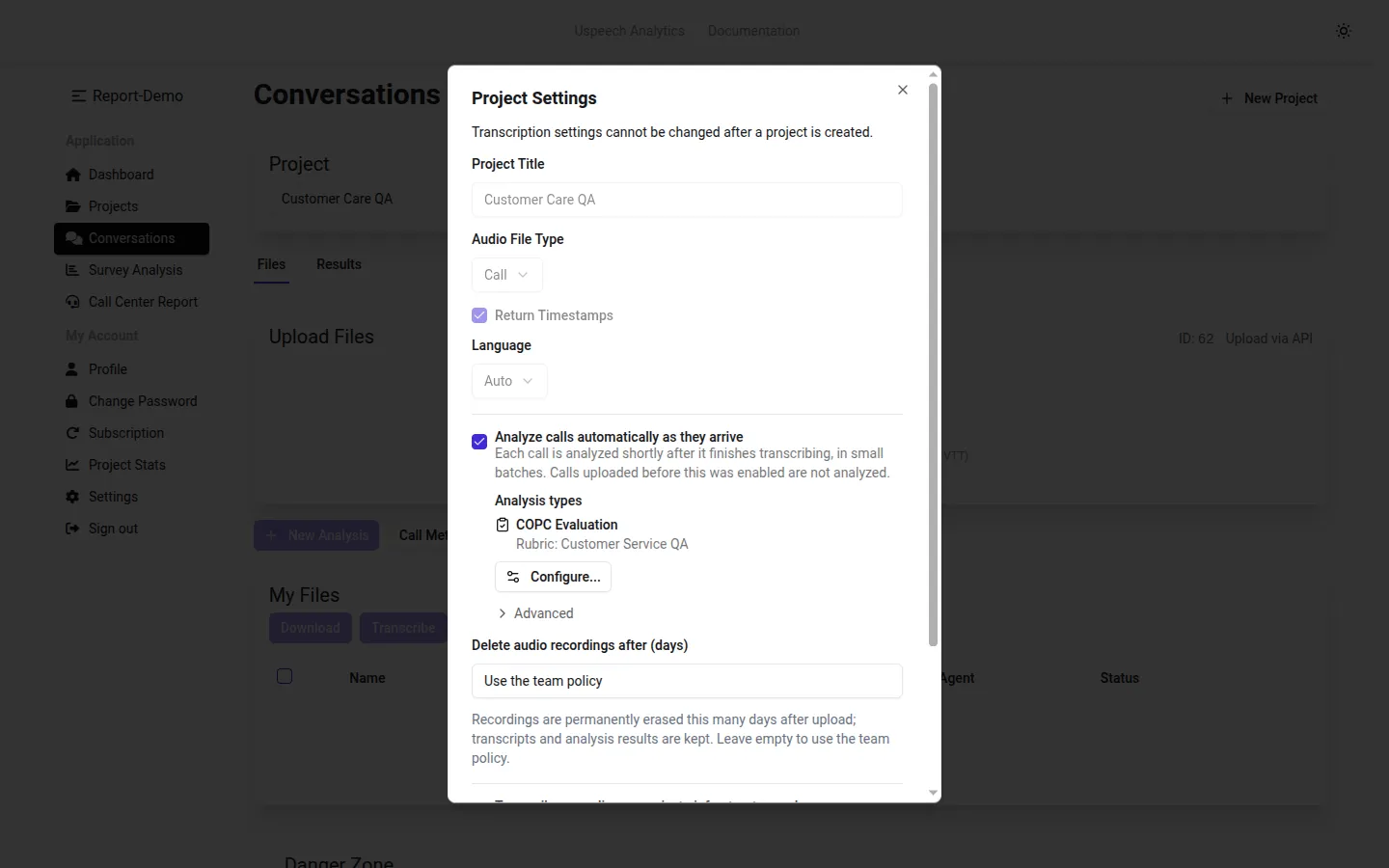
The rest of the dialog — audio retention, private transcription and the speaker count — is described in Project Settings.
From an analysis you are already running
Section titled “From an analysis you are already running”On the last step of the analysis wizard, tick Also analyze new calls automatically with this configuration. The selected files are analyzed now, and the same configuration is stored for future uploads.
The checkbox only appears when the selection can also run call by call — corpus-wide analysis types cannot.
What can run automatically
Section titled “What can run automatically”| Analysis type | Requirement |
|---|---|
| Calls Analysis | — |
| COPC Evaluation | An evaluation rubric must be selected |
| Custom Questions | At least one question, answered per call — typed in, or taken from a survey template |
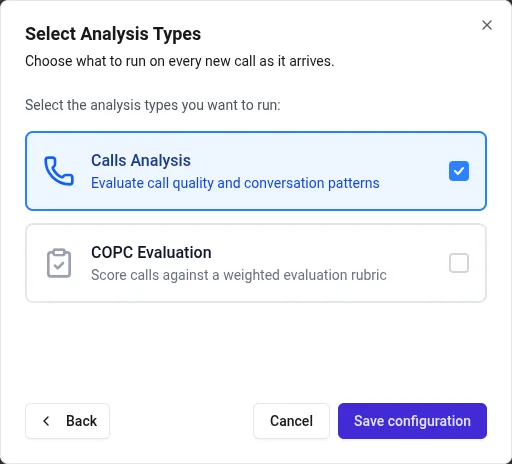
Automatic analysis is per call by construction, so the wizard skips the scope step and hides options that compare conversations with each other:
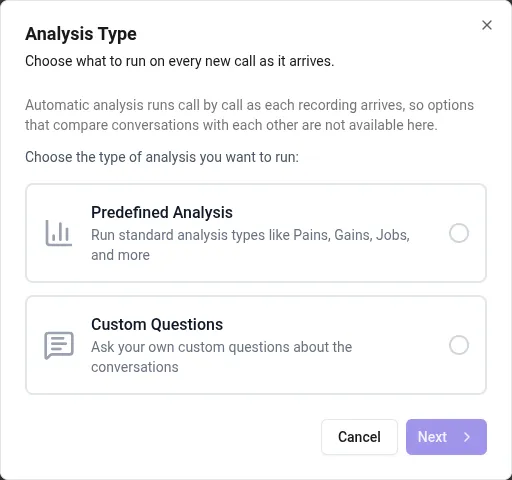
The configuration is rejected if it could not produce results — COPC without a rubric, custom questions without questions, no analysis type selected, or a non-call project.
Using a survey template for custom questions
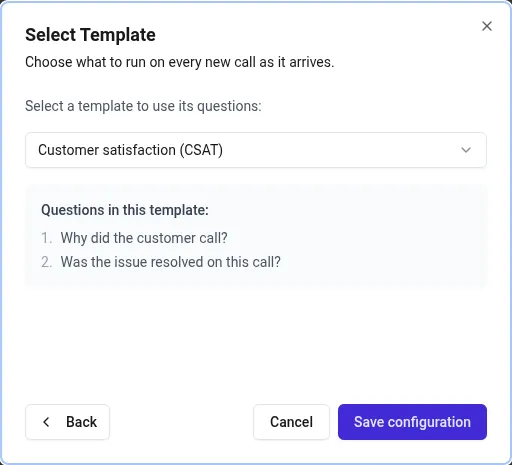
Section titled “Using a survey template for custom questions”On the Question source step you can take the questions from a saved survey template instead of typing them. The template itself is remembered with the configuration, not just the questions it contained, and it does two things:
- Every new call is answered against the template’s question list
- The merged result codifies those answers against the template’s predefined codes, if the template has a codebook linked — instead of inventing categories out of the answers themselves
Automatic analysis always classifies against the codebook rather than re-grouping, whichever way the template’s Freeze Codes setting is configured: batches arriving hours apart have to stay comparable. An answer that matches no code can still add one, so occasionally a new code appears at the end of the list.
Reopening Configure… keeps the template selected, so saving the configuration again does not drop its codes.
When a batch runs
Section titled “When a batch runs”Calls are queued as they finish transcribing and dispatched in batches:
- Calls per batch — a batch is analyzed as soon as this many calls are waiting (default 20, maximum 20)
- Maximum wait (seconds) — a partial batch is analyzed anyway once its oldest waiting call reaches this age (default 300 seconds)
Both settings live under Advanced in the Project Settings dialog. Lower the wait if you want results to appear faster on a quiet queue; leave the defaults if you upload in bulk.
Where the results appear
Section titled “Where the results appear”- The Call Center Report aggregates every analyzed call and refreshes while analysis is in progress
- The Results tab of the project shows one merged result per analysis type, labelled all analyzed calls, covering every call analyzed so far — individual batches are not listed separately
- The Files tab shows any call that could not be analyzed
Open the merged result exactly like any other analysis result: it exports to Word, Excel and PowerPoint the same way.
Refreshing categories on a merged result
Section titled “Refreshing categories on a merged result”Free-text output — contact reasons, mistakes, missing prompts, and the answers to custom questions — is grouped into categories. New calls are classified against the categories already in place, which keeps incoming batches consistent and cheap. A full re-grouping runs on a daily sweep, or on demand from the Refresh categories button on a merged result. It runs in the background — reload the page a few minutes later.
Output backed by a codebook is never re-grouped: contact reasons in a project with frozen predefined codes, and custom-question answers whose questions came from a template with codes, are always classified against those codes. Refresh categories re-classifies them against the same codebook rather than replacing it.
When calls are skipped
Section titled “When calls are skipped”Automatic analysis can fail for a single call without stopping the rest. The Files tab shows the reason under the file status:
| Message | Meaning |
|---|---|
| Automatic analysis skipped — quota exceeded | Your subscription has no minutes left to cover this file. Transcript uploads (SRT/VTT) are charged at analysis time, because they never passed through transcription. |
| Automatic analysis failed | The call could not be analyzed — most often because no transcript was available |
The Call Center Report also shows a banner counting calls that failed automatic analysis, so a short report explains itself instead of looking empty.
Changing the configuration later
Section titled “Changing the configuration later”Analysis types, the rubric and the survey template behind custom questions can be changed at any time from Configuration → Configure…; the change applies to calls that arrive afterwards. Swapping the template’s codebook is the exception — it also re-codifies the answers already collected, on the next merge.